How To Fix Gmail 550-5.7.1 Error (2026 Complete Guide)
Seeing this bounce message?
550-5.7.1 Unauthenticated email
550-5.7.1 Message rejected
550-5.7.1 IP not authorized
If you’re sending mail from a VPS (for example using aaPanel), this guide explains exactly what’s wrong and how to fix it.
—
🚨 What Does Gmail 550-5.7.1 Mean?
Gmail uses error code 550-5.7.1 when:
✔ Authentication fails
✔ IP reputation is low
✔ Reverse DNS missing
✔ SPF or DKIM fails
✔ Message looks like spam
✔ Sending volume is suspicious
It’s a trust failure, not just a technical error.
—
🧠 Step 1: Read the Full Bounce Message
Different 550-5.7.1 messages mean different things:
| Bounce Message | Likely Cause |
|---|
| Unauthenticated email | SPF/DKIM missing |
| IP not authorized | SPF incorrect |
| IP reputation low | Cold VPS IP |
| PTR missing | Reverse DNS not set |
| Spam detected | Content or volume issue |
The exact wording tells you the root problem.
—
✅ STEP 2: Configure Reverse DNS (PTR)
This is mandatory for VPS email.
Your VPS provider must set:
$$
YOUR_SERVER_IP → mail.yourdomain.com
$$
And forward DNS must match:
$$
mail.yourdomain.com → YOUR_SERVER_IP
$$
Without PTR → Gmail distrusts your server automatically.
—
✅ STEP 3: Add SPF Record
In your DNS provider (e.g., Cloudflare):
$$
Type: TXT
Name: @
Value:
v=spf1 mx a ip4:YOUR_SERVER_IP all
$$
SPF authorizes your server to send mail.
If SPF fails → Gmail rejects with 550-5.7.1.
—
✅ STEP 4: Enable DKIM
Inside aaPanel:
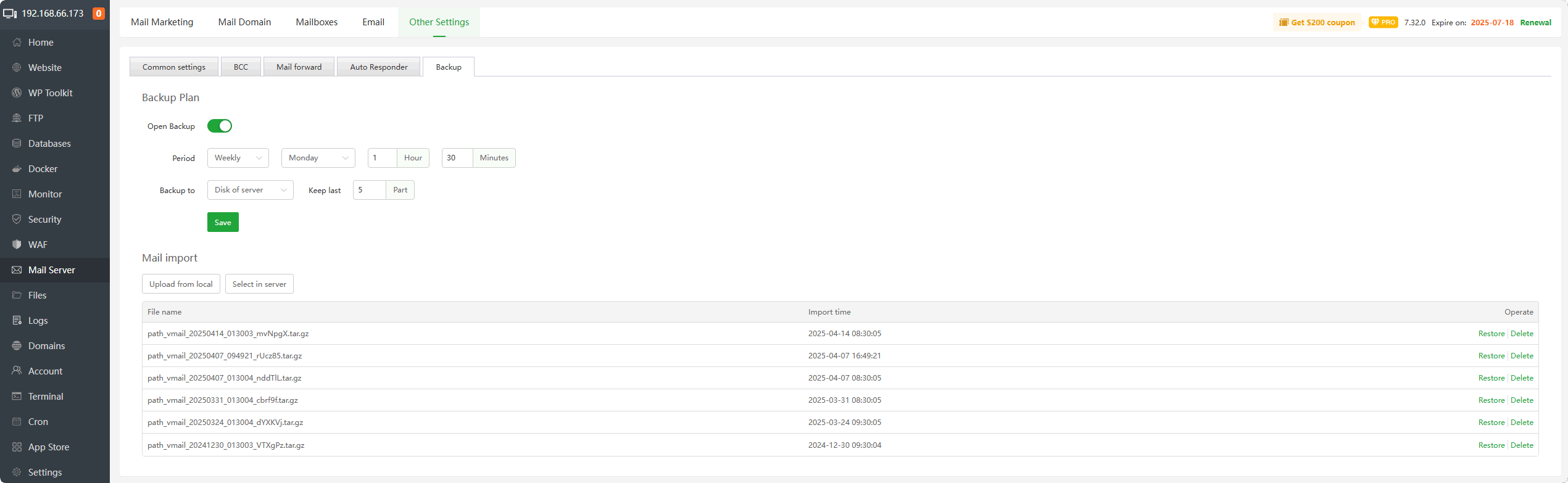
Mail Server → Enable DKIM
Add generated TXT record to DNS.
After sending email, check Gmail → “Show Original”.
You should see:
$$
DKIM: PASS
$$
If DKIM fails → rejection likely.
—
✅ STEP 5: Add DMARC
Add this TXT record:
$$
Type: TXT
Name: _dmarc
Value:
v=DMARC1; p=none; rua=mailto:postmaster@yourdomain.com
$$
DMARC strengthens trust and policy alignment.
—
✅ STEP 6: Install Proper SSL for Mail Hostname
4
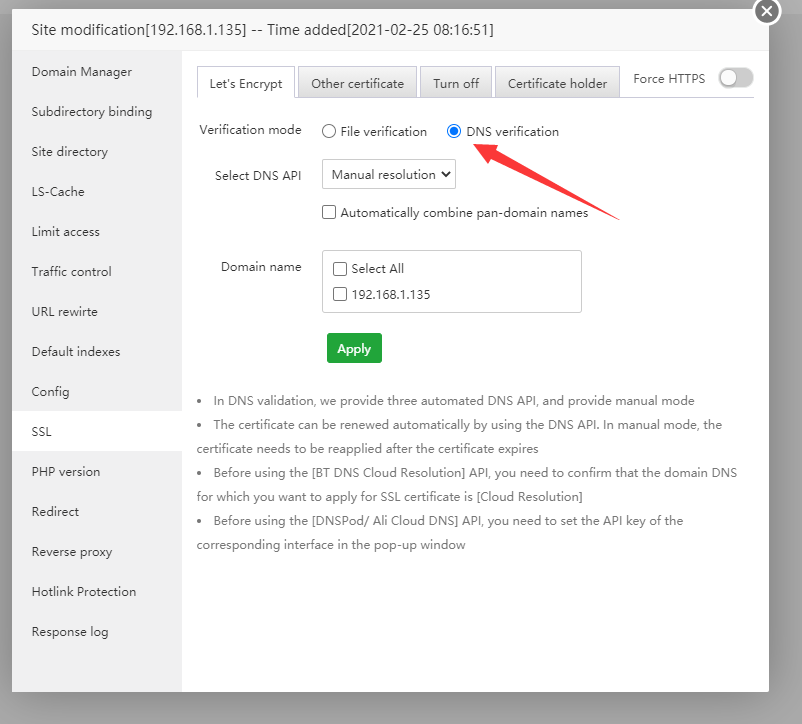
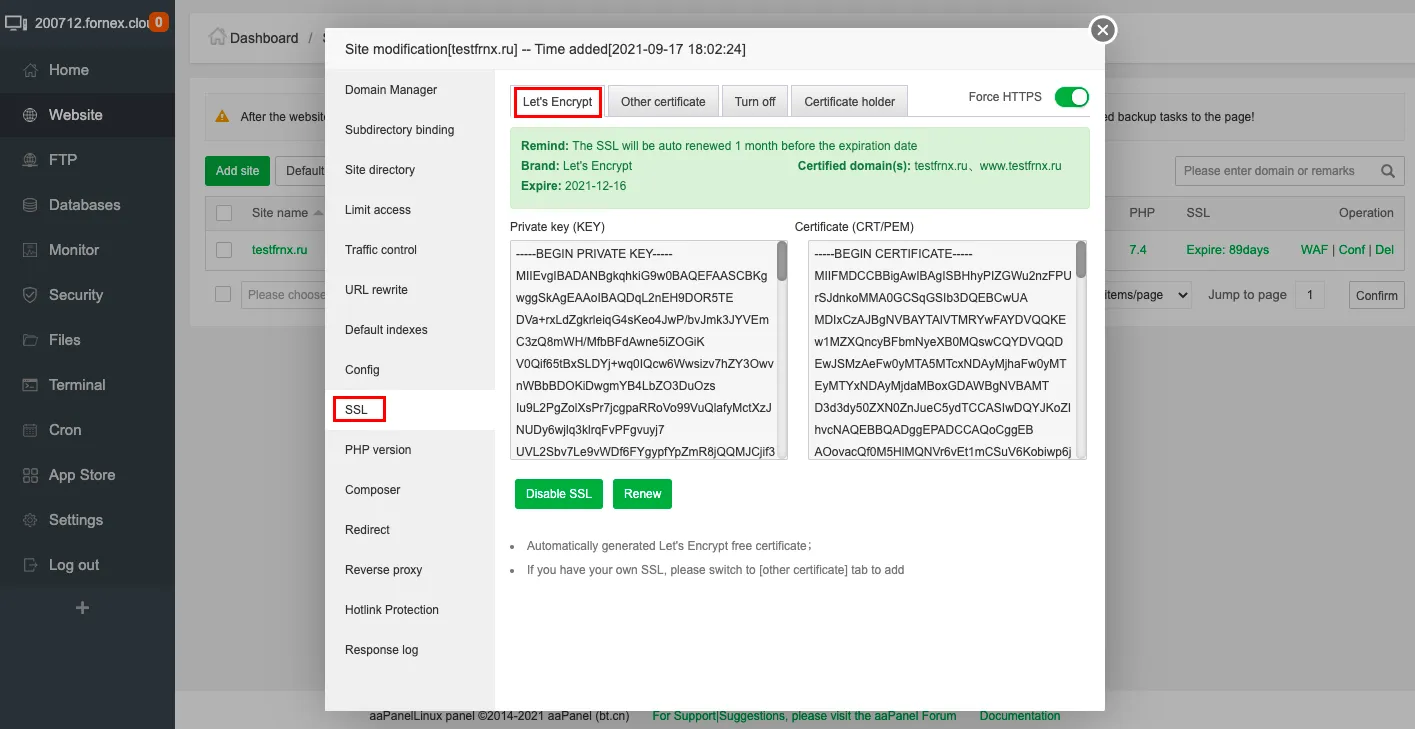
Install Let’s Encrypt SSL for:
$$
mail.yourdomain.com
$$
Never use:
❌ Server IP as SMTP host
❌ Self-signed certificate
SMTP must match SSL hostname.
—
✅ STEP 7: Warm Up Your VPS IP
If your VPS IP is new:
Start with:
✔ 5–10 emails per day
✔ Gradually increase
✔ Avoid bulk sending
Sudden volume spikes trigger 550-5.7.1.
—
✅ STEP 8: Check If IP Is Blacklisted
Search your server IP in blacklist databases.
If blacklisted:
✔ Request delisting
✔ Or ask VPS provider for new IP
Many VPS IPs have past abuse history.
—
🚫 Common Mistakes That Trigger 550-5.7.1
❌ Sending 200 emails on Day 1
❌ Missing PTR
❌ SPF typo
❌ DKIM not added to DNS
❌ Mail record proxied via Cloudflare
❌ Sending marketing email without warm-up
—
⚡ Quick Fix Checklist
| Item | Status |
|---|
| PTR configured | ✅ |
| SPF added | ✅ |
| DKIM enabled | ✅ |
| DMARC added | ✅ |
| SSL installed | ✅ |
| Mail DNS not proxied | ✅ |
| IP warmed gradually | ✅ |
| IP not blacklisted | ✅ |
—
🚀 When To Use SMTP Relay Instead
If you:
✔ Need bulk sending
✔ Want guaranteed inbox
✔ Don’t want to manage IP reputation
Use SMTP relay services instead.
Keep VPS for website hosting.
—
#aaPanel #GmailFix #SMTPError #VPSMail #EmailDeliverability #550571 #Cloudflare

