aaPanel Website Showing 403 Forbidden – Permission Fix (2026 Guide)
If your website suddenly shows:
❌ 403 Forbidden
❌ Permission Denied
❌ Access to this resource is blocked
And you’re using:
This guide will help you fix it quickly.
—
🚨 Why aaPanel Shows 403 Forbidden
A 403 error means:
The server understands the request — but refuses access.
In aaPanel, the most common cause is:
✔ Wrong file permissions
✔ Wrong file ownership
✔ Missing index file
✔ Bad .htaccess rule
✔ Firewall blocking
✔ Nginx misconfiguration
—
✅ Step-by-Step Permission Fix (2026 Method)
—
🟢 STEP 1: Set Correct File Permissions (Most Important)
This fixes 80% of cases.
Correct permissions:
$$
Folders: 755
Files: 644
$$
In aaPanel:
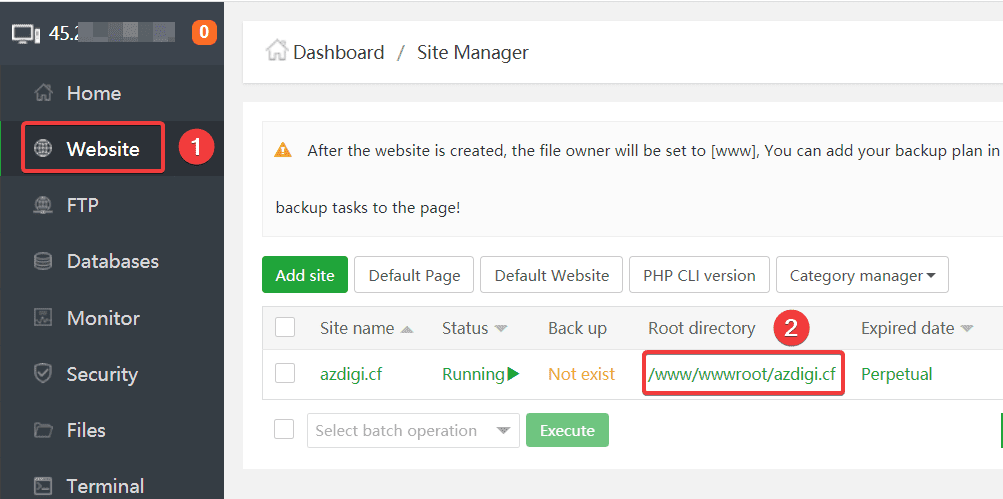
Go to File Manager
Open:
$$
/www/wwwroot/yourdomain.com
$$
Right-click root folder
Set permissions → Apply recursively
⚠ Never use:
$$
777
$$
That triggers security blocks.
—
🟢 STEP 2: Fix File Ownership
Incorrect ownership causes permission denial.
Correct owner should be:
$$
www:www
$$
Via SSH:
$$
chown -R www:www /www/wwwroot/yourdomain.com
$$
Restart Nginx after.
—
🟢 STEP 3: Ensure index File Exists
Your root directory must contain one of:
$$
index.php
index.html
$$
If missing → server returns 403 automatically.
—
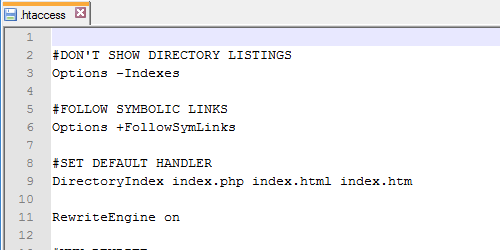
🟢 STEP 4: Check .htaccess (Apache Only)
4
Rename temporarily:
$$
.htaccess → .htaccess_backup
$$
Refresh site.
If site loads → .htaccess contains blocking rule.
Common problematic rule:
$$
deny from all
$$
Remove unnecessary deny rules.
—
🟢 STEP 5: Check Nginx Config (If Using Nginx)
Inside aaPanel:
Website → Config
Ensure you have:
$$
index index.php index.html index.htm;
$$
If missing → add it and restart Nginx.
—
🟢 STEP 6: Check Firewall & Security
Inside aaPanel → Security:
✔ Ensure your IP is not blocked
✔ Check if Fail2Ban banned you
✔ Whitelist your IP
—
🟢 STEP 7: Cloudflare Users
If using:
Check:
✔ No firewall rule blocking your IP
✔ Disable “Under Attack Mode” temporarily
✔ SSL mode = Full (Strict)
Sometimes Cloudflare triggers 403 before it reaches your server.
—
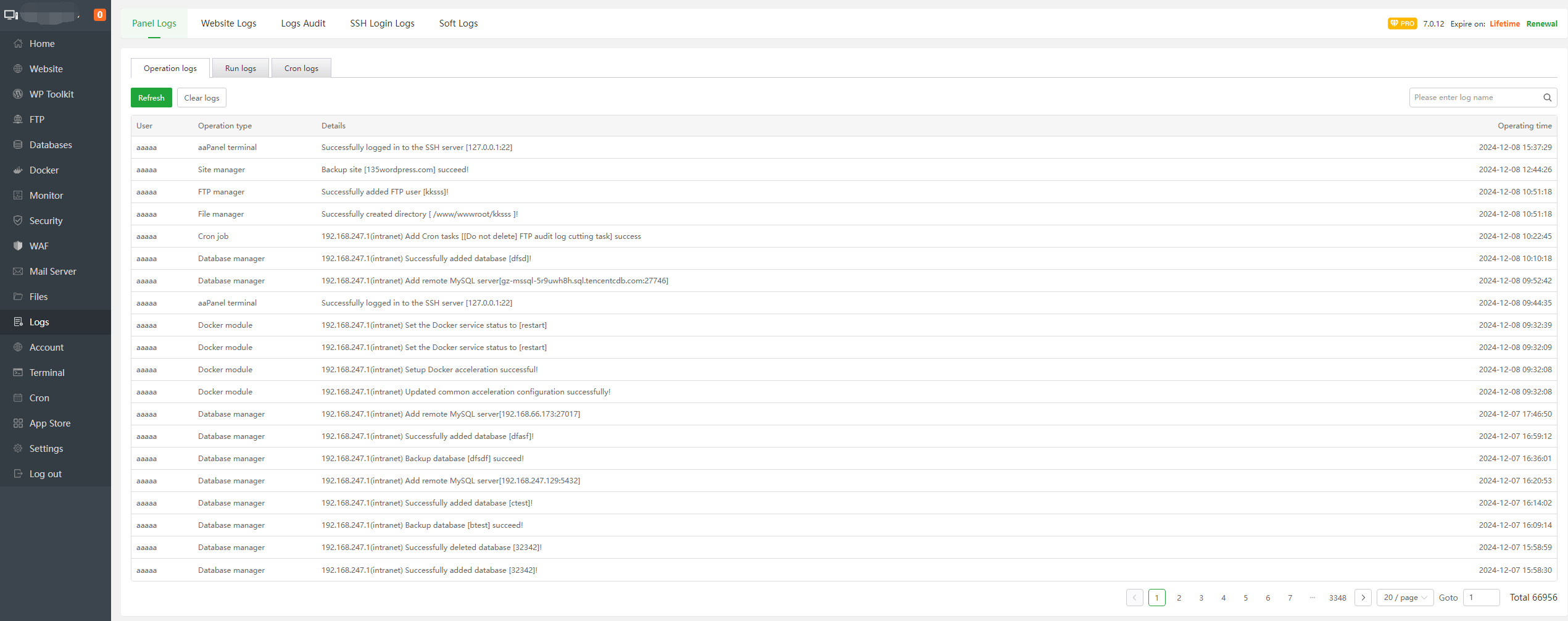
🔎 Check Logs (Always Do This)
Inside aaPanel:
Website → Logs
Or view:
$$
/www/wwwlogs/yourdomain.com.log
$$
Look for:
Logs reveal exact cause.
—
🔥 WordPress-Specific Fix
If using WordPress:
Rename plugins folder:
$$
wp-content/plugins → plugins_backup
$$
Refresh site.
If fixed → plugin caused permission block.
—
⚡ Quick Permission Fix Checklist
| Check | Done |
|---|
| Folders = 755 | ✅ |
| Files = 644 | ✅ |
| Ownership = www:www | ✅ |
| index file exists | ✅ |
| .htaccess checked | ✅ |
| Nginx config valid | ✅ |
| Firewall checked | ✅ |
| Logs reviewed | ✅ |
—
🚀 Best Practice Setup (Stable aaPanel 2026)
✔ Use Nginx for lightweight performance
✔ Keep strict permissions
✔ Avoid manual chmod 777
✔ Review logs regularly
✔ Enable Cloudflare protection properly
—
#aaPanel #403Forbidden #PermissionFix #VPSHosting #WebHosting #Cloudflare #ServerFix

