Is your VPS showing:
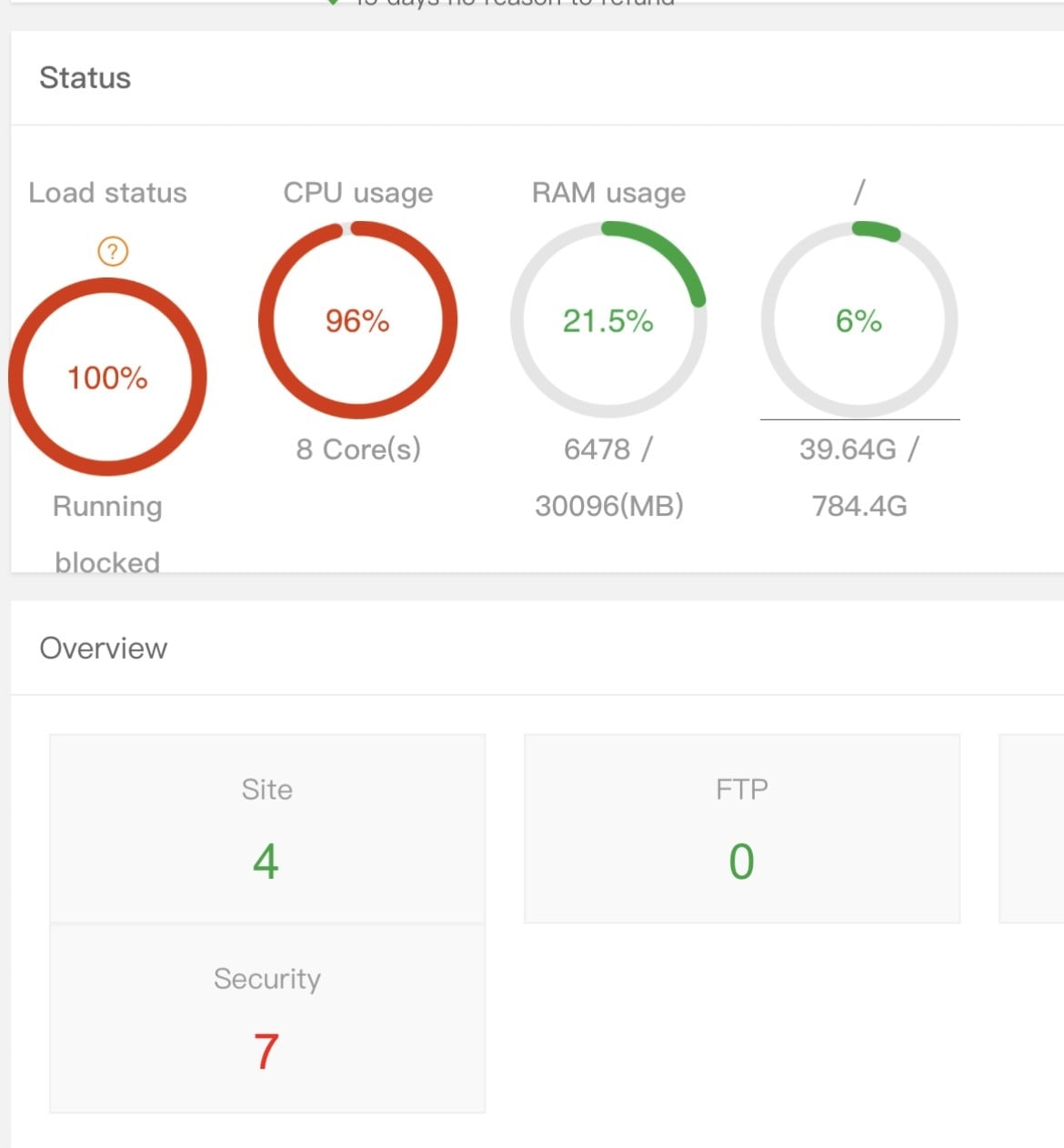
⚠ CPU usage 80%–100% constantly?
⚠ Server slow or freezing?
⚠ Website loading slowly?
If you’re using:
This guide will help you diagnose and fix high CPU usage properly.
—
🚨 Why aaPanel Shows High CPU Usage
Important:
aaPanel itself is usually not the problem.
High CPU is typically caused by:
✔ Too many PHP processes
✔ Apache running on low RAM
✔ Bots hitting your website
✔ WordPress plugins
✔ MySQL heavy queries
✔ Cron jobs
✔ No caching
✔ Malware or attack
—
🧠 STEP 1: Identify What Is Using CPU
Inside aaPanel:
Dashboard → Monitor
Or via SSH:
$$
top
$$
Look for:
php-fpm
apache
nginx
mysqld
suspicious process names
That tells you the real culprit.
—
✅ Fix #1: Switch From Apache to Nginx (Huge Improvement)
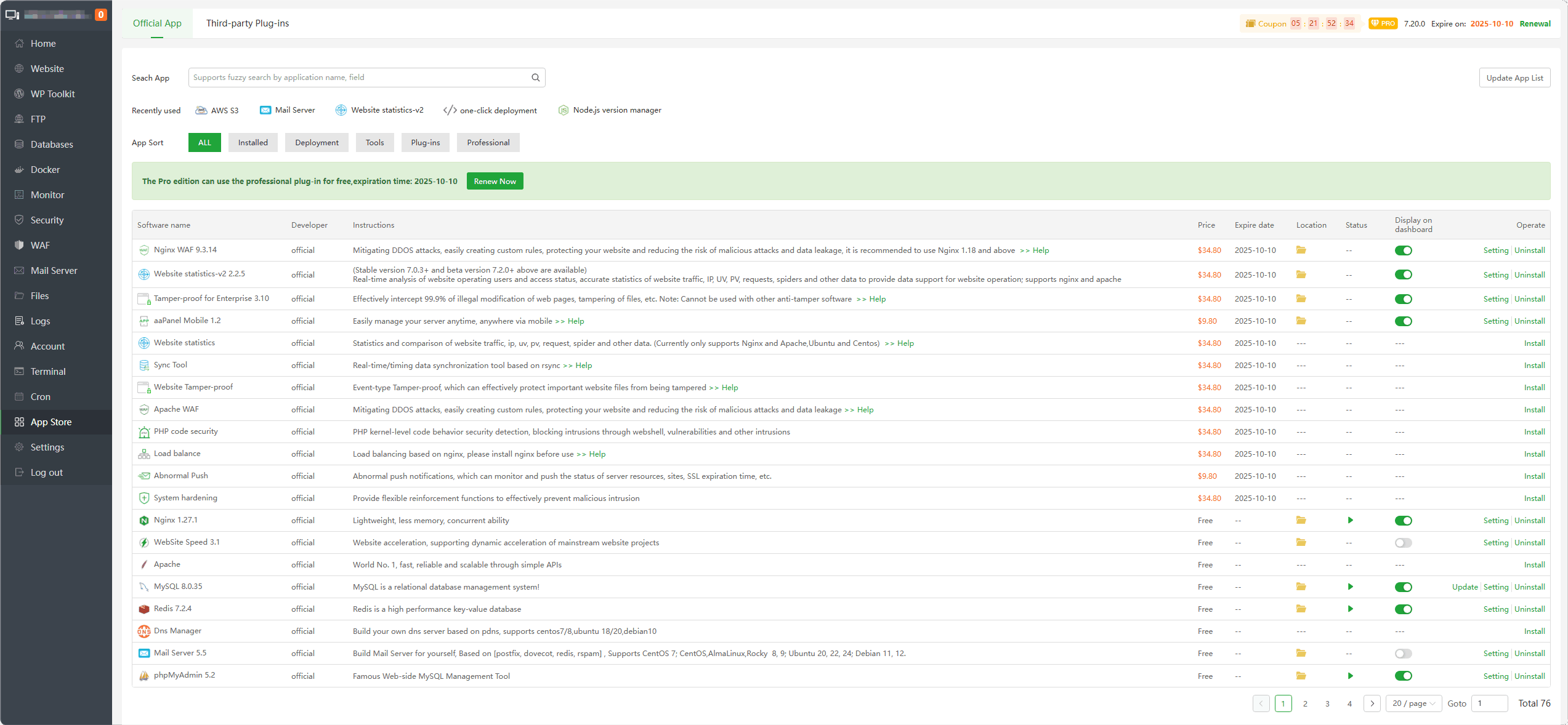
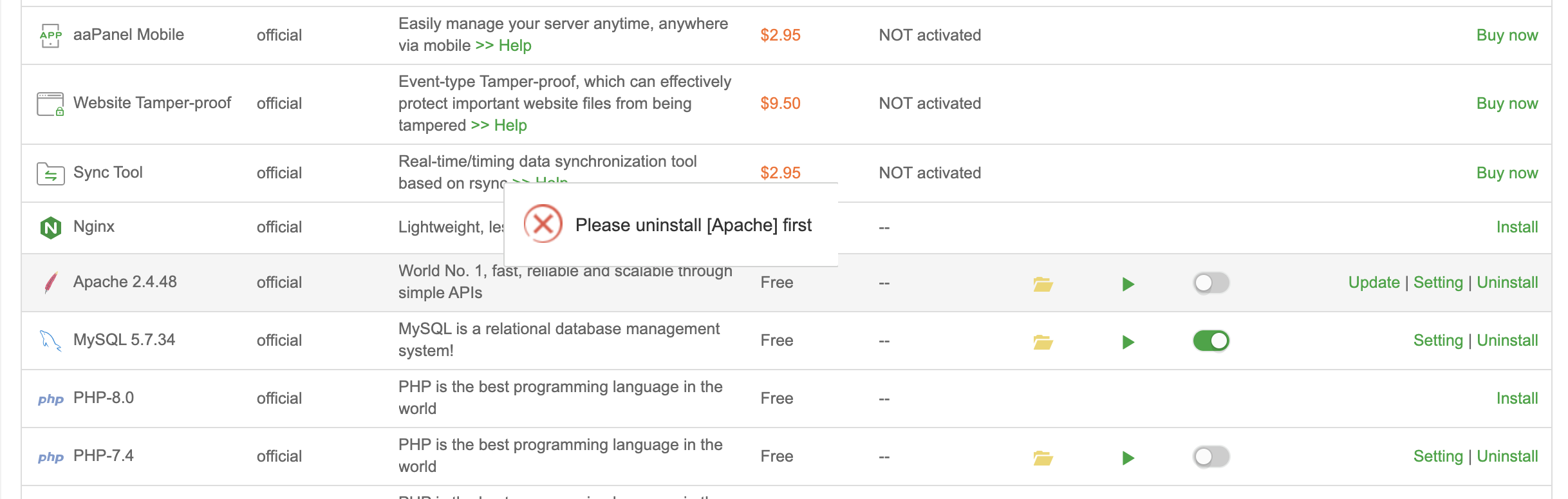
4
Apache consumes more CPU on small VPS.
Recommended setup (2026):
✔ Nginx
✔ PHP-FPM
✔ MariaDB
If using 1GB VPS → Nginx is strongly recommended.
—
✅ Fix #2: Reduce PHP-FPM Process Count
Inside aaPanel → PHP Settings:
Lower:
$$
pm.max_children
pm.start_servers
$$
Example for 1GB VPS:
$$
pm.max_children = 10
$$
Too many PHP workers = CPU spike.
—
✅ Fix #3: Enable OPcache
Inside PHP Extensions:
Enable:
✔ OPcache
This reduces PHP execution time significantly.
—
✅ Fix #4: Enable Redis Cache (Very Effective)
Install Redis in aaPanel.
If using WordPress:
Enable Redis object cache plugin.
This reduces database CPU usage dramatically.
—
✅ Fix #5: Optimize MySQL / MariaDB
Inside aaPanel → Database → Config
Reduce buffer sizes if VPS is small.
Check slow queries:
$$
slow_query_log = ON
$$
High MySQL CPU usually means:
—
✅ Fix #6: Protect Against Bots & Attacks
If CPU spikes randomly:
✔ Enable rate limiting in Nginx
✔ Use firewall rules
✔ Enable protection in Cloudflare
✔ Block suspicious IPs
Bots can easily spike CPU.
—
✅ Fix #7: Check Cron Jobs
Inside aaPanel → Cron
If cron runs every minute:
Change to:
$$
Every 5 or 10 minutes
$$
Bad cron configuration causes CPU spikes.
—
✅ Fix #8: Scan For Malware
High CPU + unknown processes?
Run:
$$
ps aux –sort=-%cpu | head
$$
If unknown script using CPU → investigate immediately.
—
🔥 Recommended Stable Setup (1GB VPS – 2026)
✔ Nginx
✔ PHP 8.1
✔ OPcache enabled
✔ Redis enabled
✔ MariaDB optimized
✔ Swap enabled (1GB swap file)
✔ Cloudflare protection enabled
—
⚡ Quick Fix Checklist
| Check | Status |
|---|
| Identify process | ✅ |
| Switch to Nginx | ✅ |
| Reduce PHP workers | ✅ |
| Enable OPcache | ✅ |
| Enable Redis | ✅ |
| Optimize MySQL | ✅ |
| Protect from bots | ✅ |
| Check cron jobs | ✅ |
—
🧠 When To Upgrade VPS?
If after optimization:
CPU still 80–100%
Then:
✔ Upgrade from 1GB → 2GB
✔ Move to better CPU plan
✔ Use external database
Sometimes hardware limit is the bottleneck.
—
#aaPanel #HighCPU #VPSOptimization #ServerPerformance #WebHosting #Cloudflare #HostingFix

